Subdividing Meshes
Subdividing adds resolution to a mesh by increasing the number of its cells, which can useful when you need to add detail in a global manner or to create smoother surfaces.
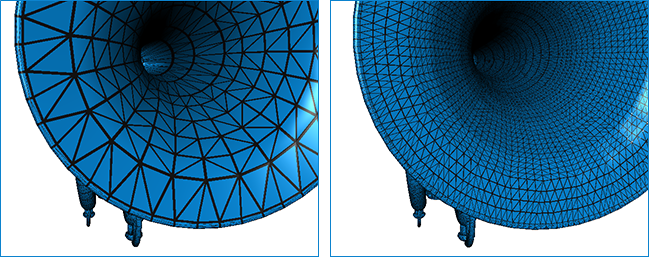
The example below shows the results of subdividing a mesh.
Original mesh on left and subdivided mesh on right
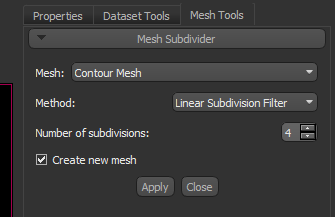
The options for subdividing meshes are available in the Mesh Subdivider panel. Right-click the required mesh in the Data Properties and Settings and then choose Mesh Subdivider in the pop-up menu to open the Mesh Subdivider panel, shown below.
Mesh Subdivider panel
| Description | |
|---|---|
| Mesh | Indicates the currently selected mesh, to which the subdivision will be applied. If required, you can select another mesh in the drop-down menu. |
| Method |
Three filtering methods are available in Dragonfly to subdivide input polydata — Linear Subdivision, Loop Subdivision, and Butterfly Subdivision.
Linear subdivision… Each subdivision iteration creates 4 new triangles for each triangle in the mesh (see https://www.vtk.org/doc/nightly/html/classvtkLinearSubdivisionFilter.html#details). Loop subdivision… Is an approximating subdivision scheme that creates four new triangles for each triangle in the mesh (see https://www.vtk.org/doc/nightly/html/classvtkLoopSubdivisionFilter.html#details). Additional references can be found at: Butterfly subdivision… Is an interpolating subdivision scheme that creates four new triangles for each triangle in the mesh by implementing the 8-point butterfly (see https://www.vtk.org/doc/nightly/html/classvtkButterflySubdivisionFilter.html#details). Additional references can be found at: Note Refer to https://cmake.org/Wiki/VTK/Examples/CSharp/Meshes/Subdivision for more information about mesh subdivision. |
| Number of subdivisions |
Lets you set the number of subdivisions required.
You should note that for each subdivision level increase, the number of triangles will increase by approximately a factor of 4. For example, if n=2, the number of triangles in the resulting mesh will be 16x the number of triangles in the original mesh. |
| Create new mesh |
Lets you choose an output target — at the input so that the original mesh is transformed, or at the output so that a new mesh is created and the original remains unmodified.
Whenever possible, you should try to retain the original mesh so that you can compare the original and subdivided versions. |
 How to Subdivide a Mesh
- Right-click the mesh that you want to subdivide in the Data Properties and Settings panel and then choose Mesh Subdivider in the pop-up menu.
The Mesh Subdivider panel appears on the right side of the workspace.
- Select a subdivision method — Linear Subdivision, Loop Subdivision, or Butterfly Subdivision filtering.
- Select the number of subdivisions required.
- Check the Create new mesh option, if required.
Whenever possible, you should try to retain the original mesh so that you can compare the original and subdivided versions.
- Click the Apply button.
